Showing posts with label How to. Show all posts

Sunday, August 16, 2020

How to Get a boAt accessory for FREE

 How to Get a boAt accessory for FREE

Yes , you heard it right !!!  Get a boAt accessory for absolutely free*

Am sharing this post from my personal experience and how I have received free Earphones from boAt company. You may consider this as a marketing , but has come from the satisfaction of a customer and which is a good sign for a company like boAt . This company is the No.1 in fashionable consumer electronics in the country. They started the business in the year 2016 and have their presence across all eCommerce sites in India. Let me explain my case and how it was completely fruitful


  •  I was on a deputation to Gurgaon last  July , in a hurry I forgot to carry my headphones. So, for time being i have purchased a boAt product from Amazon
  • I have used it for almost 9-10 months and all of a sudden one side was not working
  • I was unaware of what to do , so I've purchased another boAt product from Amazon
  • Later , after few days got to know that there is a 1 year hastle less warranty provided by the boAt  company.
  • I logged onto their website and provided the necessary details (uploaded receipt of the purchase from Amazon)
  • Returned the product to boAt and received a new product as replacement for FREE
So am quite happy with the choice that I made for the purchase from boAt 

Look at some of the Products here https://amzn.to/31Qi6dC

Tuesday, July 21, 2020

2 Easy ways to send messages on WhatsApp without saving to Contacts

Hello All,

Here's how to send WhatsApp messages without saving the contact number itself 

1.You can start a chat with any number by opening Chrome or Firefox or the Samsung browser, and going to the web address https://wa.me/phonenumber. Replace the last part with the full number, with the country and region code, but without any + or - or () or 00.

So for example, if you want to chat with the number +91 9848012345 in India, you would go to the URL: https://wa.me/919848012345. Type it in the browser and you'll get the web page below with a big green Message icon. Tapping on it opens a conversation with that phone number in WhatsApp (if the number is registered on the service, obviously).


2. Download the below apps from Playstore. They are compact without any ads and do not require any permissions

a. Click to Chat


b. Easy Message


Wednesday, January 03, 2018

How To Link Mobile Number With Aadhaar Card using a Single Call


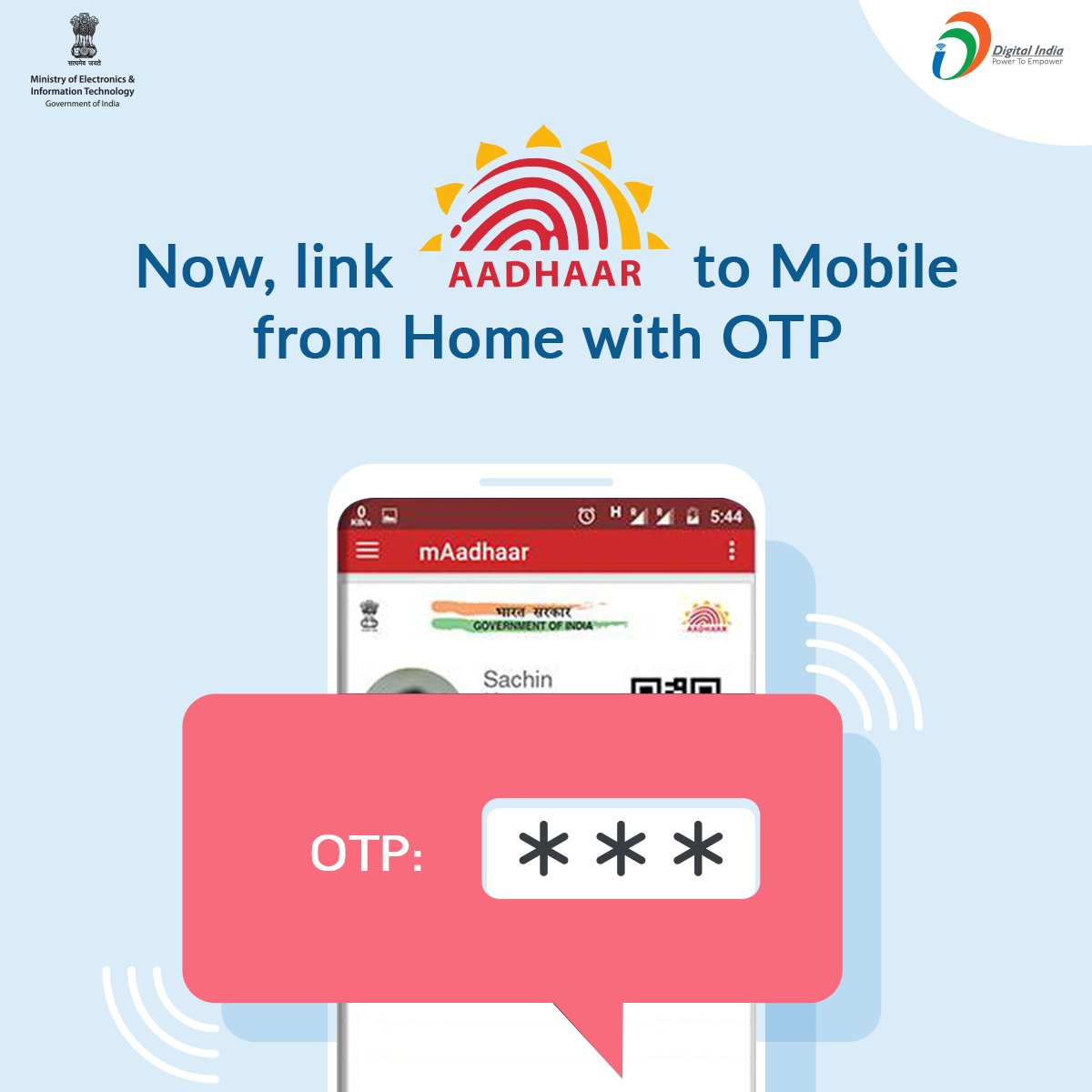
The UIDAI has issued directives for generating OTP either through the service provider's website or through the Interactive Voice Response (IVR) services to facilitate the Aadhaar linking with mobile phone number.

Users on certain telecom networks can now avail the interactive voice response (IVR) facility for linking their mobile numbers and Aadhaar numbers. 

Some operators are now allowing their subscribers to use this service by dialling a central helpline number. This is will save them the effort to visit offline stores for linking the two numbers.


Here's how the IVRS-based Aadhaar authentication through helpline 14546 works:


  • Once you call the toll-free helpline 14546, the IVR system asks you whether you are an Indian citizen or an NRI. 
  • The caller is to provide response 1 in case of Indian citizen.
  • The caller is then asked to enter his or her 12-digit Aadhaar number.
  • The IVRS then repeats the number entered and asks the caller to confirm by pressing response 1.
  • After this step, an OTP or One-Time PIN is sent to the registered mobile number.
  • The IVR system asks the caller to give consent to the telecom operator to pick his or her name, photo and date of birth from the UIDAI database.
  • The caller is asked to enter the OTP in the next step.
  • The caller is asked to press 1 to complete the Aadhaar-mobile number re-verification process.


NRIs/OCIs are not eligible to enroll for Aadhaar and hence fully exempted from any Aadhaar verification of bank accounts/mobile SIM or other services, the UIDAI has said.

Friday, July 07, 2017

How to link your Aadhaar with PAN Card


How to link Aadhaar number with PAN card to file tax returns is on the top of everyone's mind now the process will become mandatory from July 1. According to a new amendment to the tax proposals in the Finance Bill for 2017-18, anyone who has a PAN card must provide their Aadhaar number to the principal director general of income tax (systems) or DGIT (systems). If you want to link the two but are not sure how to do it, you can use the e-facility launched by the Income Tax department, which is the easiest way to link the two. In fact, you don't even need to sign in to the IT website to link your Aadhaar number and PAN card.

How to link PAN card with Aadhaar online


If you want to link your Aadhaar with PAN card, head over to the Income Tax e-filing portal and follow the steps below:


  1. On the website, click on the link on the left saying Link Aadhaar.
  2. Now, enter your PAN number, Aadhaar number, name as per Aadhaar, and the Captcha, and then click on Link Aadhaar.
  3. This should link the PAN and Aadhaar, but if there is any discrepancy in your details, you'll receive an Aadhaar OTP to confirm the linkage. Enter the OTP and click on Save to continue.
  4. You can also link the details after logging in to the income tax website. Log in as you normally would and then click on Profile Settings in the top menu.
  5. Next, find Link Aadhaar.
  6. Enter your Aadhaar number and click on Save to continue.

This will only work if the details on the PAN and the Aadhaar card match. In case of any discrepancies, you can upload a scan of your PAN card, or register via OTP on your linked mobile number as mentioned above.

That's all there is to it right now. Did this guide help you in linking your PAN to your Aadhaar card? Let us know via the comments, and check out the rest of our How-to articles.


Friday, May 27, 2016

How to remove your cell number from TrueCaller

Well, most of us might use TrueCaller app to find out the unknown number you receive to your cell phone. It crowd sources contact details from all its users' address books and by this your number might be on TrueCaller's Database. 

Not everyone knows this, but for some fixed-line phones,Truecaller even lists the address of the landline. This doesn't mean much when telemarketers or spammers call from an office address, but ideally you wouldn't want strangers to know your home address just because you called them from your landline. 


Here's how to remove your number from the TrueCaller's Database,


Watch out our video:

Once you have deactivated your Truecaller account, you can proceed to removing your number from the service. Here's how.
How to remove your number from Truecaller
  1. Enter your phone number with the correct country code. For example: +911140404040 or+919999999999.
  2. Tick one of the reasons for unlisting, or if you wish, type your reasons for removal in the Other form.
  3. Key in the verification captcha.
  4. Click Unlist.
Truecaller claims that it removes these numbers up to 24 hours after receiving an unlist request. This doesn't always mean that your number will stay off the service forever. We'd removed our mobile number around a year ago but it started appearing again on the service a few days ago even though we've never used Truecaller. Your best bet is to keep checking with Truecaller users whether they see your contact details. If they don't, you're good to go. If not, you can always ask them to unlist your number.